
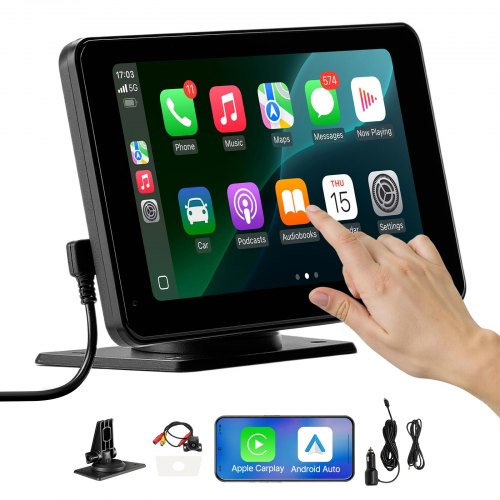
Imagine transforming your driving experience by turning your tablet into a reliable backup camera for your car. No more struggling with blind spots or neck strains while reversing.
Using a tablet as a backup camera isn’t just a futuristic idea; it’s a practical solution that’s within your reach. Picture the ease and convenience of having a clear view of what’s behind you, all displayed on a device you’re already familiar with.
This setup isn’t just a tech upgrade; it’s a way to enhance your safety on the road. Your curiosity might be piqued: How exactly do you make this setup work? What tools and apps will you need? And, most importantly, is it really as simple as it sounds? You’re about to discover straightforward steps to turn your tablet into a handy backup camera. Plus, you’ll understand how this small change can drastically improve your driving comfort and safety. Keep reading to unlock the full potential of your tablet and transform your driving experience.
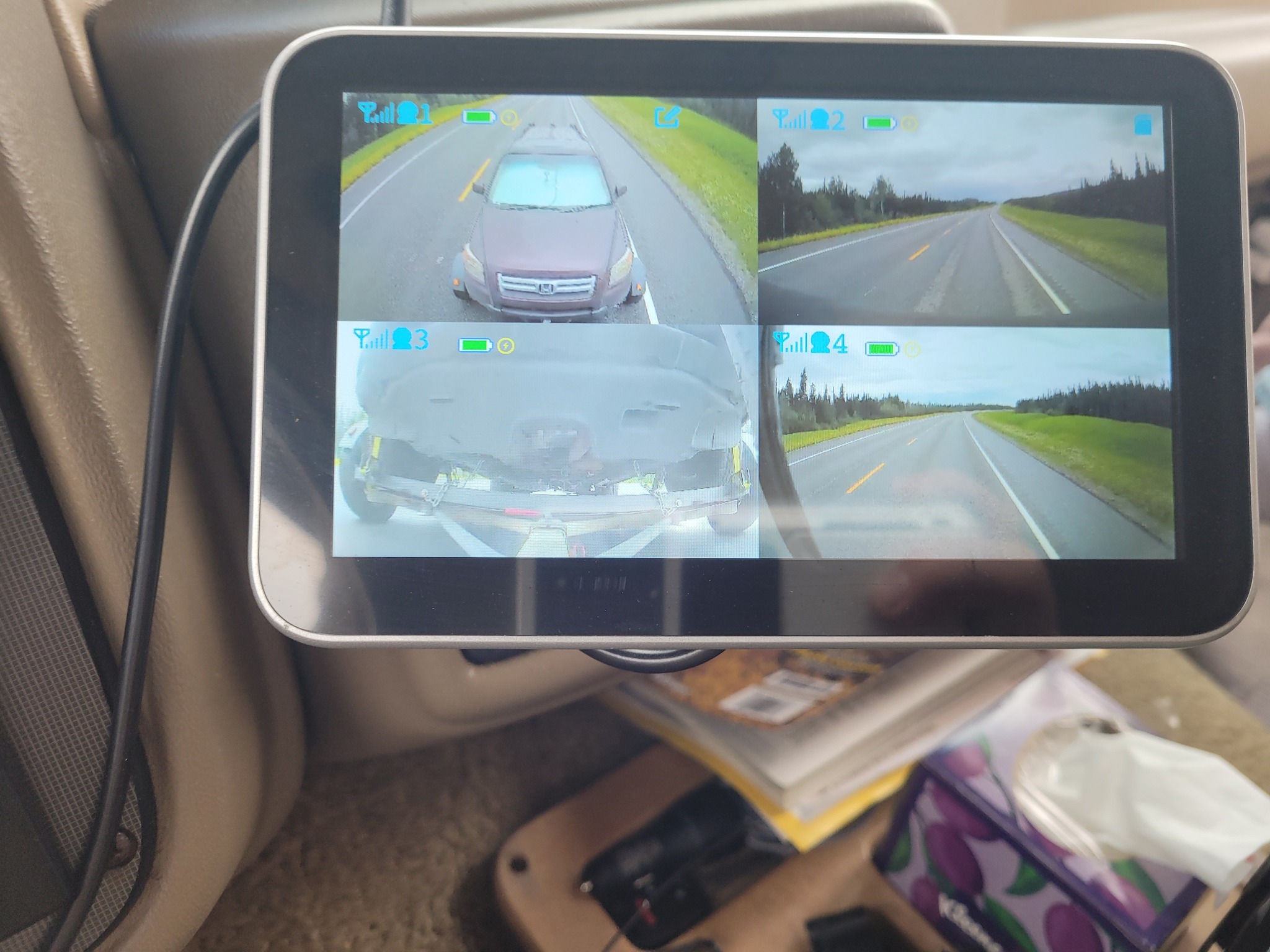
Credit: www.facebook.com
Choosing The Right Tablet
Choosing the right tablet for your car’s backup camera can make all the difference in your driving experience. With so many options available, it’s crucial to focus on the specific features that will enhance your setup. Consider factors like compatibility, screen size, resolution, and battery life to ensure you get the most out of your tablet.
Compatibility Considerations
Not all tablets will work seamlessly with backup camera systems, so compatibility is key. Check if your tablet supports the connectivity required for your camera. Most modern tablets have Bluetooth and Wi-Fi capabilities, which are essential for wireless camera setups.
Additionally, make sure your tablet’s operating system is compatible with the camera’s app. A quick search in the app store can help you verify this.
Think about how you’ll mount the tablet in your car. Some tablets are too large or bulky for certain mounts, so envision where and how it will fit in your vehicle.
Screen Size And Resolution
The size of the tablet screen impacts visibility and ease of use. Larger screens offer a better view but might be cumbersome in smaller vehicles. Aim for a balance that fits comfortably within your dashboard setup.
Resolution is equally important. A higher resolution provides clearer images, which is crucial when backing up. Check for tablets with at least HD resolution to ensure optimal clarity.
Do you often drive in bright sunlight? Look for screens with anti-glare properties to maintain visibility even under harsh lighting conditions.
Battery Life And Charging Options
Battery life can make or break your tablet experience. Frequent charging can be a hassle, especially on long drives. Opt for tablets known for extended battery life to minimize interruptions.
Consider your charging options in the car. Does your vehicle offer USB ports or cigarette lighter adapters for charging? Ensure your tablet can easily connect to these power sources.
Some tablets come with fast-charging features, which can be a lifesaver if you’re in a hurry. It’s worth investing in one that minimizes downtime.
Necessary Equipment
Transforming your tablet into a backup camera for your car is not just a tech-savvy project; it’s a practical solution that can enhance your driving experience. To get started, you’ll need some essential equipment to ensure your setup is efficient and reliable. Let’s dive into the components necessary for this conversion.
Wireless Backup Camera
Investing in a wireless backup camera is crucial for this setup. Choose one that offers clear image quality and has a strong wireless connection to your tablet. This eliminates the hassle of dealing with tangled wires and makes installation much smoother. Look for cameras with night vision capabilities and wide viewing angles to improve visibility in different lighting conditions.
Mounting Brackets And Holders
Proper mounting brackets and holders are essential to secure both the camera and your tablet. For the camera, ensure it is fixed firmly to your car’s rear, typically above the license plate. For your tablet, consider using adjustable holders that can be mounted on the dashboard or windshield for easy viewing. Stability is key to preventing distractions while driving.
Connection Cables And Adapters
While the camera is wireless, you might need connection cables and adapters for initial setup or troubleshooting. Check if your tablet requires specific adapters to connect with the camera’s receiver. Having the right cables ensures seamless communication between devices and can be handy if wireless signals are weak or inconsistent.
Have you ever faced challenges with your car’s visibility and thought a backup camera could be your savior? With the right equipment, your tablet can effortlessly become the solution you need. Embrace this tech upgrade and enhance your driving safety today.
Setting Up The Camera
Position the tablet securely in your car to ensure a clear view. Connect it to the backup camera using a compatible app. Adjust the settings for optimal display and ease of use while driving.
Setting up your tablet as a backup camera can be a game-changer for your driving experience. It adds a layer of safety and convenience that you might not have realized you needed. But how do you go about it? Here, we’ll guide you through the essential steps to get your tablet working flawlessly as a backup camera. Let’s dive into the specifics of installing the camera, adjusting the angle, and testing its functionality.Installing The Camera On Your Vehicle
First, choose a suitable camera designed for vehicles. Many options are available, ranging from wireless models to those requiring a direct connection. Select one that fits your budget and meets your quality expectations. Next, find the perfect spot to mount the camera. Typically, the license plate area is ideal due to its central location and unobstructed view. Ensure the camera is securely attached and won’t fall off during driving. Follow the manufacturer’s instructions for installation. This usually involves connecting the camera to the vehicle’s power supply or using a rechargeable battery if it’s wireless. Double-check all connections to prevent any loose wires.Adjusting Camera Angle And View
Once installed, the camera angle needs fine-tuning. Adjust it so you can see a clear view of what’s directly behind your vehicle. Avoid pointing it too low or high; balance is key. Consider asking a friend to help you with adjustments. Have them stand behind your car to ensure the camera captures the entire view without blind spots. This collaborative approach can save time and effort. Think about the lighting conditions. Test the view during different times of the day to ensure visibility. If the camera struggles with low-light conditions, you might need additional lighting or a camera with night vision capabilities.Testing Camera Functionality
Now that everything is set up, it’s time to test the camera. Start your vehicle and check if the camera feed appears on your tablet without lag or distortion. Drive around your neighborhood and practice parking with the new setup. Pay attention to the camera’s responsiveness and clarity. This real-world test is crucial for ensuring the camera performs well in various situations. Consider potential issues, like signal interference or poor image quality. If you encounter problems, revisit the installation and settings to troubleshoot. Your backup camera should enhance your driving experience, not complicate it. Have you ever wondered how much safer you’d feel with a backup camera? Give it a try and experience the difference firsthand!
Credit: www.amazon.com
Connecting The Tablet
Connecting the tablet to your car as a backup camera is simple and practical. Install a compatible app, secure the tablet, and link it to a wireless camera. Enjoy enhanced visibility and safety while driving.
Connecting a tablet to act as a backup camera in your car can be a smart move. It offers a larger screen and flexibility. The process is straightforward but requires attention to detail. Let’s break it down into simple steps.Downloading Relevant Apps
Start by searching for compatible apps in your app store. Look for apps designed for wireless backup cameras. These apps allow the tablet to receive the camera’s video feed. Read reviews and check ratings. Ensure the app is user-friendly and reliable. Once you find the right app, download and install it. Make sure your tablet has enough storage space. A full device can slow down performance.Pairing The Tablet With The Camera
Next, you need to pair the tablet with the camera. Turn on your camera and ensure it’s in pairing mode. Open the app you downloaded earlier. Follow the on-screen instructions to connect the devices. The app should detect the camera automatically. If not, double-check that both devices are on the same network. Once connected, test the video feed. Ensure the image is clear and responsive.Ensuring Stable Connectivity
Stable connectivity is crucial for a reliable backup camera. Use a high-quality Wi-Fi connection for the best results. Avoid using public Wi-Fi networks. They can be unstable and insecure. Consider using a portable Wi-Fi hotspot if needed. Position your camera and tablet to minimize interference. Keep them within a reasonable distance to maintain a strong signal. Regularly update the app and firmware. This ensures compatibility and performance remain optimal.Mounting The Tablet In Your Car
Mounting a tablet in your car allows it to function as a backup camera. Secure the tablet using a reliable holder, ensuring it stays stable during drives. Connect the camera to the tablet via Bluetooth or Wi-Fi for a clear rear view.
Mounting the tablet in your car is essential for using it as a backup camera. A well-mounted tablet ensures clear visibility and enhances safety while driving. Follow these steps to mount your tablet effectively.Choosing The Best Location
Select a location that provides a clear view without obstructing your driving vision. The dashboard is a popular choice for mounting. It allows easy access and visibility. Ensure the tablet does not block any essential controls or displays.Securing The Tablet Holder
Secure the tablet holder firmly to prevent movement. Use a holder designed for car dashboards or windshields. Look for holders with strong suction cups or adhesive bases. This prevents the tablet from falling during sudden stops or turns.Positioning For Optimal Visibility
Adjust the tablet angle for optimal visibility. Ensure the screen is glare-free and easy to read. Test different positions before finalizing the mount. Make sure all passengers can view the screen without straining.Troubleshooting Common Issues
Transforming a tablet into a backup camera involves configuring the device’s camera app and mounting it securely. Ensure seamless connectivity with reliable apps and cables for clear visuals. Optimize settings for real-time video and troubleshoot connectivity issues for effective use.
Troubleshooting issues with using a tablet as a backup camera can be frustrating. Many users encounter common problems that can disrupt the experience. Addressing these issues ensures a smooth and reliable setup. Below are some common problems and their solutions.Connectivity Problems
Connecting your tablet to the camera can sometimes fail. Check the Wi-Fi or Bluetooth connection. Ensure both devices are in pairing mode. Restart both the tablet and the camera. This can refresh the connection. If the issue persists, verify the network settings on your tablet. Ensure there is no interference from other devices. A strong and stable connection is crucial.Video Lag And Quality Issues
Video lag can disrupt the viewing experience. Ensure the tablet is close to the camera. Distance can cause signal delay. Check if the tablet’s software is up to date. Outdated software can affect video quality. Adjust the resolution settings on your camera. Lowering resolution can sometimes reduce lag. If issues continue, inspect the camera lens. A clean lens provides a clearer image.Power And Charging Concerns
Tablets can drain quickly when used as backup cameras. Always start with a fully charged device. Consider using a car charger for long trips. Check the charging cable for any damage. A faulty cable can impede charging. If the tablet overheats, it may stop charging. Ensure the device is well-ventilated while in use. Proper power management extends the device’s usability.Safety Tips And Best Practices
Ensure your tablet is securely mounted to avoid distractions while driving. Always check the connection between the tablet and backup camera for stable video feed. Adjust the tablet’s brightness for optimal viewing, especially during sunny or dark conditions.
Using a tablet as a backup camera in your car can enhance safety. It offers a larger screen and better visibility. Yet, it’s essential to use this setup responsibly. Follow these safety tips and best practices to ensure a safe driving experience.Minimizing Distractions
Keep your attention on the road. The tablet should not obstruct your view. Position it where you can glance quickly without distraction. Use a stable mount to avoid shifting or falling. Limit interactions with the screen while driving. Adjust settings before you start driving. This ensures you stay focused and safe.Regular Maintenance Checks
Check the camera and tablet often. Ensure the camera lens is clean and clear. Test the connection between the camera and tablet. Keep software updated for optimal performance. Regular checks prevent unexpected failures. Make sure the tablet’s battery is charged or connected. A dead tablet can leave you without a backup view.Legal Considerations
Check local laws regarding devices in vehicles. Some places have strict rules about screen use while driving. Make sure your setup complies with these regulations. Ignoring laws can lead to fines or penalties. Stay informed about any changes in legislation. A legal setup keeps you safe and out of trouble.
Credit: www.tiktok.com
Frequently Asked Questions
Can A Tablet Replace A Backup Camera?
Yes, a tablet can replace a backup camera with the right setup. Use a wireless camera and a compatible app to view footage on your tablet. Ensure the tablet is securely mounted for easy visibility. This setup offers convenience and flexibility for monitoring surroundings while reversing.
How To Connect Tablet To Backup Camera?
Connect a tablet to a backup camera using a wireless connection. Purchase a Wi-Fi-enabled camera and install its app on your tablet. Pair the camera with the tablet via Wi-Fi. Follow instructions in the app to view live camera feed on your tablet screen.
What App Is Best For Tablet Backup Camera?
Choose apps compatible with your camera system. Popular options include ‘RoadVue’ and ‘iRearCam. ‘ Ensure the app supports live video streaming and offers easy setup. Check user reviews for reliability and performance. A good app enhances the functionality of your tablet as a backup camera.
Is Tablet Backup Camera Setup Cost-effective?
Yes, using a tablet as a backup camera can be cost-effective. It repurposes existing technology, reducing the need for additional hardware. Purchase a compatible wireless camera for a reasonable price. This setup is generally cheaper than installing a traditional backup camera system.
Conclusion
Using a tablet as a backup camera in your car is simple. It enhances safety and convenience on the road. With the right apps and setup, your tablet becomes a helpful tool. Make sure to secure the tablet properly for safe driving.
This setup provides clear visibility, reducing blind spots. Affordable and effective, it’s a great option for many drivers. Try it yourself and enjoy a smoother driving experience. Stay safe and confident on every journey with this practical solution. Enjoy the added peace of mind it brings to your daily commute.